
Last updated on September 21, 2026
SEO Check in the Browser: Three Perspectives on Every Page in Five Minutes

You want to know whether a page is technically sound, whether its content gets through to machines, and whether people can use it without hitting barriers. Until now, this has required multiple tools, multiple logins, and a few minutes of loading time per analysis. It can be done much faster.
With three free browser extensions, you can get three different perspectives on the same page in under five minutes: the technical, the machine-based, and the human. You’ll see what an SEO specialist reads in the metadata, what a crawler or AI system is actually able to grasp from the content, and where someone gets stuck if they are not using the page with their eyes. By the end of this article, you’ll have a step-by-step process you can try out right away on your own homepage.
If you want to dive deeper into this topic, you'll find the complete audit process for an entire website in the SEO Bootcamp Audit. This article is the quick version for individual pages.
Why these three and not the usual suspects?
For years, lists of the “10 Best SEO Extensions” have featured the same names: Keyword Surfer, Keywords Everywhere, MozBar, and SEO Meta in 1 Click. These are solid tools, no question. But they share a common problem: they all look at a page from the same perspective. You install four extensions and get four variations of the same perspective.
I didn’t choose the three extensions presented here because they’re the best-known ones, but because there’s very little overlap between them. Each one covers an area that the other two don’t address at all. In practice, this combination of on-page data, crawler perspective, and accessibility has been more valuable to me than any single specialized extension. The benefit for you: three insights instead of three of the same one.
1. Detailed SEO Extension: the basic technical state in ten seconds
The first problem you'll solve: You no longer have to check the source code, switch between five tabs, or use an external tool to verify whether a page's title, description, canonical tag, and robots tag are correct.
The Detailed SEO Extension has 600,000 users and a rating of 4.9 out of 5 stars (234 reviews). It’s free, ad-free, doesn’t track user data, and has been actively developed for years, most recently with the addition of Dark Mode, an improved Schema view, and a duplicate content finder, among other features. For me, it has replaced at least five tabs that used to be open all the time.
This is what the first click looks like here on the klickdojo.de homepage:
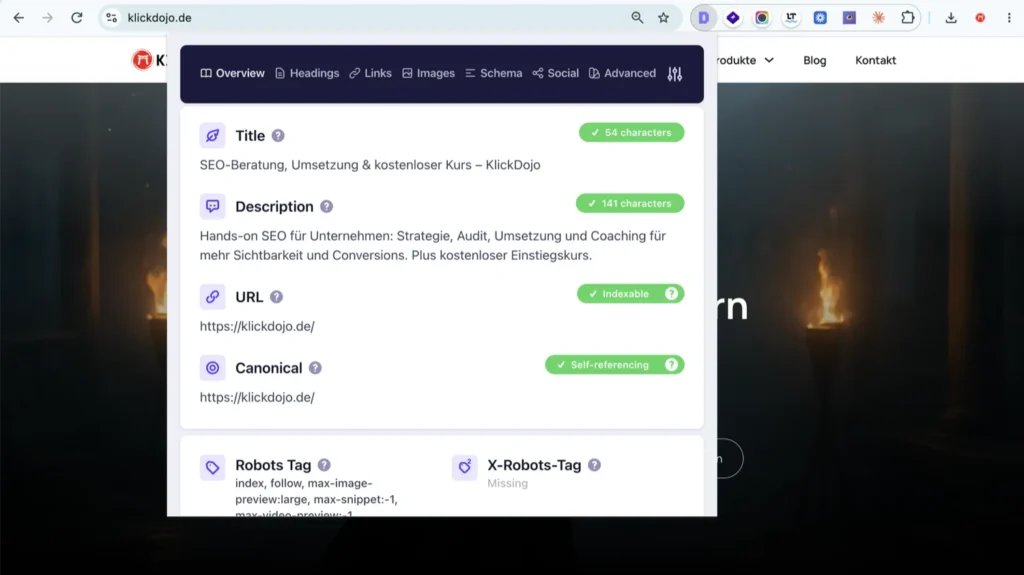
Everything you need for an initial assessment, all in one view: title, description, URL, canonical, and robots tag.
Here's what you can see at a glance, using the homepage as an example: The title “SEO-Beratung, Umsetzung & kostenloser Kurs – KlickDojo“ has 54 characters and is highlighted in green; the meta description, with 141 characters, is also highlighted in green. This means neither will be truncated in the search results. The URL is marked as “Indexable,” the canonical tag is set to “Self-referencing” and points to https://klickdojo.de/, and the robots tag is set to “index, follow, max-image-preview:large, max-snippet:-1, max-video-preview:-1.” The X-Robots tag is listed as “Missing,” which is not an error here because indexing control is already properly handled via the Meta-Robots tag. This process took less than ten seconds.
You can read this off any page the same way, including a competitor's. That is the real value: you do not need access to a backend to understand how a page is set up technically.
Here's what you can specifically check using the extension:
- Title, meta description, and robots tag at a glance, including a character count so you can immediately see if anything will be cut off in search results
- Heading structure (H1–H6) visually: indented and in the original font size, so over- or under-optimization is immediately noticeable
- Canonical tags and X-Robots HTTP headers: a common source of errors, especially on paginated or filtered pages
- Schema markup for the page, without having to use an external structured data tester
- Hreflang references, including status codes: this saves a lot of time on international projects
- All links and image URLs as a CSV export: handy for a quick link audit without a crawler tool
- "Nofollow" and "Sponsored" links marked directly on the page
- "People Also Asked" from Google Search: good input for your next content briefing
- Viewing a page as Googlebot by changing the user-agent: shows whether there are cloaking or JavaScript rendering issues
- Right-click to jump to Ahrefs, Moz, SimilarWeb, Archive.org, or a "site:" search: one click instead of switching tabs and typing
- Duplicate content check for selected text: shows whether a passage of text already exists elsewhere on the web
In short: If you want to understand in seconds how a page is built, technically and in terms of content, this is your first click.
2. AI Eyes: See what's left of your text without JavaScript
The second problem you're solving: So far, you only know what your page looks like in a browser. You do not know how much of it actually reaches a system that does not execute JavaScript.
This isn’t just a theoretical concern. Googlebot reliably renders JavaScript, though with a delay via its own rendering queue, and the AI Overviews also draw from this crawl. The crawlers behind AI answer engines such as GPTBot, ClaudeBot and PerplexityBot, by contrast, usually do not execute JavaScript at all. A page that looks visually compelling may appear partially empty to these systems, for example when key paragraphs are loaded later via lazy loading or client-side rendering. If this applies to you, you won’t notice it without testing, because your browser shows you the complete page.
AI Eyes makes this blind spot visible in seconds. With 1,000 users and a 4.6 out of 5-star rating (5 reviews), this extension is significantly smaller than the other two. At its core, it does one thing: it disables JavaScript with a single click, showing the page as it would appear without dynamic rendering. It also counts the visible words so you can immediately compare how much text remains with JavaScript enabled versus without it. It doesn’t need much more than that: a toggle, a word counter, and a brief explanatory box. As soon as there’s a difference between the two values, a “View Report” button appears, taking you to a brief report summary. That simplicity is exactly why I use it so often.
Here's what to do: Load the page, activate the toggle, and check the word count difference. If half the text is suddenly missing, you'll know where to look next.
Here is the test on the article “SEO Trends 2026: What Matters Now in AI Search,” once with JavaScript and once without:
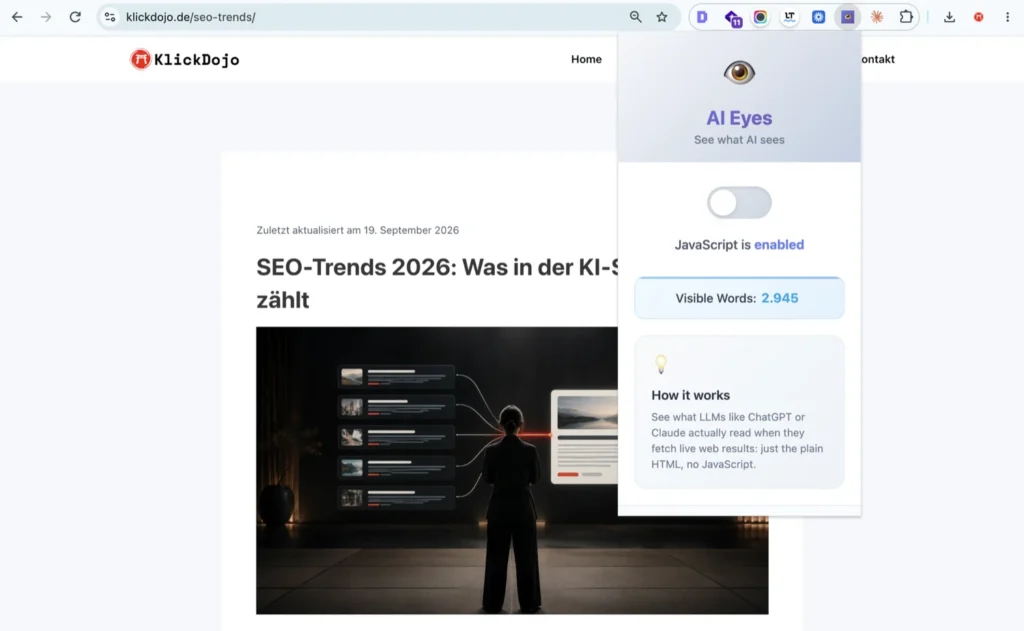
Baseline with JavaScript: 2,945 visible words. This number is your benchmark.
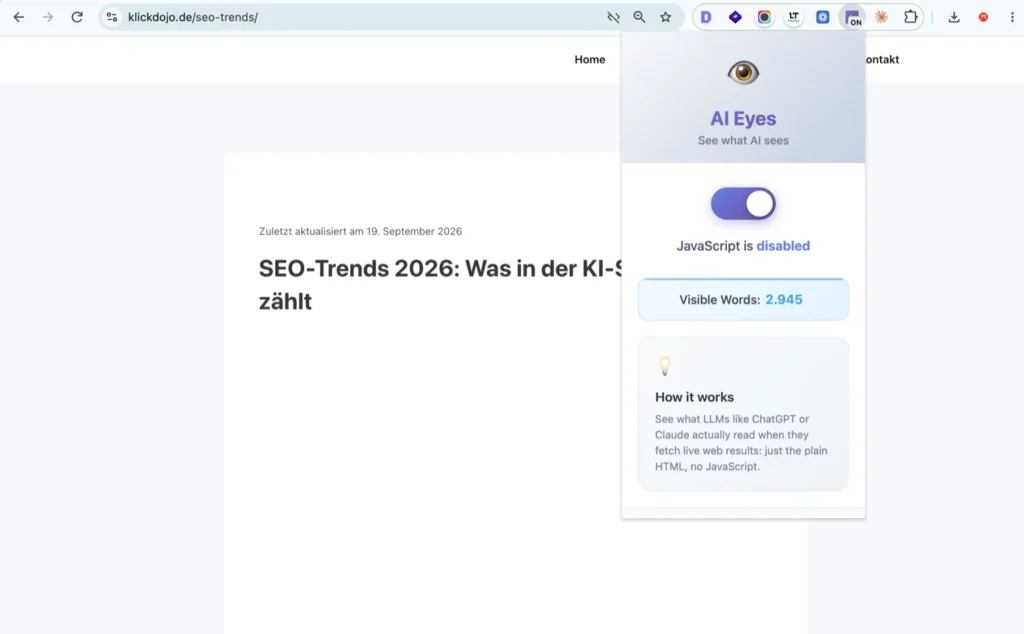
One click later, without JavaScript: exactly the same 2,945 words. That's what a clean result looks like.
The result is both the most boring and the best you could hope for: 2,945 visible words with JavaScript, 2,945 visible words without JavaScript. Not a single word disappears. So the article sits in full in the HTML that is served and is just as readable for a system without JavaScript rendering as it is for you in your browser. There’s just one minor detail that stands out: the featured image below the headline is no longer displayed without JavaScript. This doesn’t affect the text, but I’ll keep an eye on it anyway for image indexing purposes.
And the View Report button? It didn't show up on /seo-trends/. Where no content is lost, a report on lost content has nothing to show. Its absence is the all-clear. On a page with an actual difference, the same view looks like this:
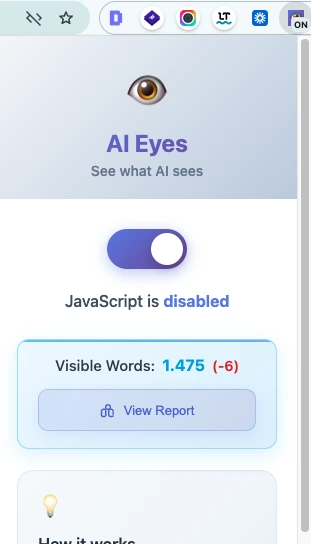
Something is missing here: JavaScript is disabled, and the counter shows 1,475 visible words, six fewer than the count with JavaScript enabled. The “View Report” button only appears once this difference is detected.
When you run your own test, watch both levels. If the word count remains the same, your text is safe. If it drops noticeably, you have a concrete starting point and no longer have to guess. And even if the word count is identical, it’s worth taking a look at which images or elements disappear.
3. WAVE Evaluation Tool: Find the errors you might miss with the naked eye
The third problem you're solving: Many pages contain errors that you do not notice at first glance because you are able to navigate around them. Others are not necessarily able to do that.
WebAIM’s WAVE has 700,000 users and a rating of 4.1 out of 5 stars (161 reviews), which puts it in the same order of magnitude as Detailed SEO. It’s a classic accessibility testing tool, and it’s on this list for a reason that many SEOs underestimate: accessibility and technical SEO overlap more than they appear to at first glance. Alt text, heading hierarchy, contrast ratios, semantic HTML: WAVE checks all of these, and all of them are also relevant to SEO.
WAVE displays the findings directly on the page so you can immediately see which element is being referred to:
- Red icons (Errors): real accessibility errors that should be fixed, such as missing alt text or empty links
- Yellow icons (Alerts): Areas you should check manually; not an automatic error, but a note
- Green icons (Features): accessibility elements implemented correctly
- Structure and ARIA: shows whether screen readers can interpret the page semantically
You find out just how honest this tool is the moment you turn it loose on your own pages. Here's the contact page for klickdojo.de:
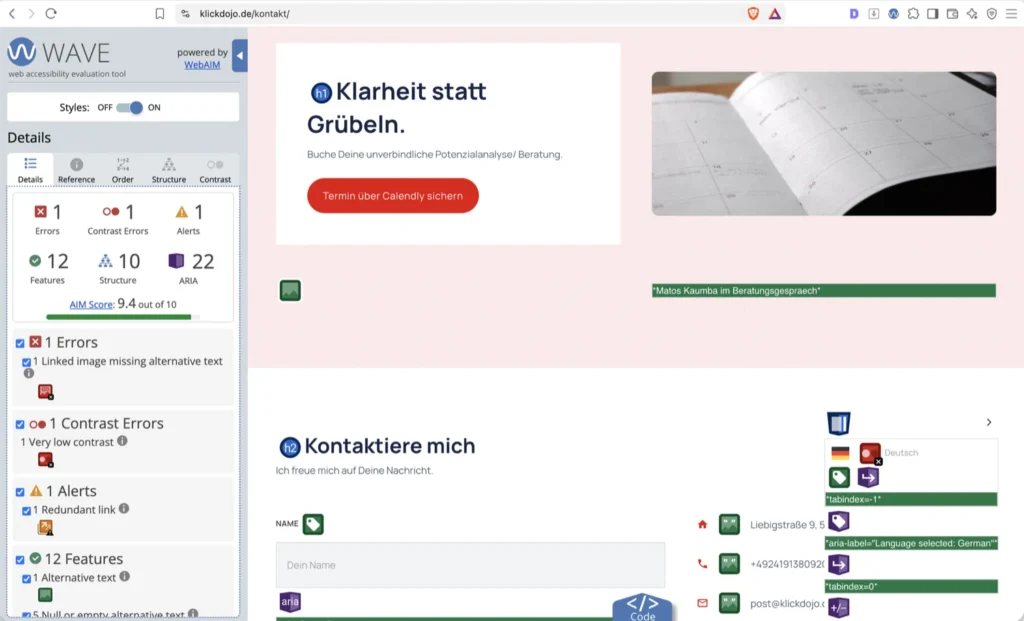
A good score, and yet three real mistakes that no one notices at first glance.
The AIM Score is 9.4 out of 10, and there are still three things I have to blame myself for: a linked image missing alternative text (“1 Linked image missing alternative text”), a contrast issue (“1 Very low contrast”), and a redundant link (“1 Redundant link”). On the other hand, there are 12 features, 10 structural elements, and 22 ARIA elements. So the basic structure of the page is sound. It’s not a disaster, but there are three real errors on the very page where people are supposed to reach me. I didn’t notice them until I took the screenshot for this article. They’ve since been fixed: missing alt text on the logo, a shade of gray that’s too pale in the language switcher, and a duplicate link to the homepage right in the header.
The point here isn't that my contact page is now error-free. The point is that three errors went unnoticed for months on a page that I visit regularly myself. On your pages the odds are exactly the same, and it takes you two minutes to find out.
Two things make WAVE particularly interesting if you work for clients or sell directly to end customers. First: the European Accessibility Act (EAA) has applied to many digital products and services in the EU since 28 June 2025, with exemptions for micro-enterprises, among others, and transition periods for services already on the market. For B2C websites and online stores, accessibility is thus increasingly becoming a compliance issue. Second, WAVE runs entirely locally in the browser and does not transmit any data to a server. This means you can also use it on intranets, staging environments, and password-protected pages without worrying about data leakage.

Your guide: the five-minute walkthrough
When you review a page for the first time, whether it is your own or a client’s, use the three extensions in this order. This approach goes from the general to the specific, so you can stop early if the first step already reveals something significant.
- Open the Detailed SEO Extension and check the title, meta description, heading structure, canonical tag and robots tag. This will give you a basic overview of the technical status in under a minute.
- View the schema tab. Is there any structured data missing that would be useful for this content type (article, product, FAQ)?
- Enable AI Eyes and compare the word count with and without JavaScript. Significant discrepancies are a warning sign of rendering issues. If there is a difference, the "View Report" button will also appear.
- Launch WAVE and look for the red icons, especially in images, forms, and navigation elements. These errors often affect UX, compliance, and, indirectly, SEO.
- Note and prioritize issues: address red WAVE errors and missing content in AI Eyes first, followed by finer details such as hreflang or duplicate content.
The three examples above follow this process, just spread across three pages. On the homepage, it was clear after Step 1 that the title, description, canonical tag, and robots tag were all in order. For the article “SEO Trends 2026,” Step 3 gave the all-clear with an identical word count of 2,945 before and after the toggle. And on the contact page, it wasn’t until Step 4 that the three minor errors came to light, errors that would not have shown up in any of the previous steps.
The entire process takes less than five minutes for an average page. Afterward, you'll have three perspectives on the same page: the technical, the machine-based, and the human.
Get started before you understand everything
On your first run-through, you'll probably get stuck in three or four places and won't know whether a finding is important or not. Keep going anyway and just make a note of it. You don't have to fix any of it the first time around.
SEO doesn't reward a single perfect session, but rather many incomplete runs in a row. The second time around, you'll recognize two of last week's findings. By the fifth time, you won't need the instructions above anymore. By the tenth time, you'll notice a missing H1 tag before you've even opened the extension. This knowledge comes from repetition on real pages, not from preparation.
It's not worth waiting until you understand everything: There's no such thing as "understanding everything" in this field, not even after years. So take your own homepage, go through the five steps, and write down whatever stands out to you. It's okay if your first note looks chaotic.
Conclusion
None of these three extensions replaces a full-scale crawling or accessibility audit. Nor are they meant to. They answer the question that comes first: Is a more in-depth check even worth it here, and if so, where? You’ll get that answer in five minutes, for free and without a login.
And if you get stuck somewhere during your first run-through, say because a WAVE finding is unclear or you cannot tell whether a difference in AI Eyes is a problem: I will spend 20 minutes going through it with you. It’s free, and there is no sales call first. You’ll share your screen, we’ll go through your page together, and afterward you’ll know which findings are worth the effort and which aren’t.
First published on September 21, 2026

Matand “Matos” Kaumba
SEO Expert at KlickDojo. Over ten years of experience, more than 70 projects managed.
Learn more about me →